 BetaLobby
If your app requires users to sign in, Play Console asks you to fill in a Sign in details declaration (previously called "App access"). It tells reviewers how to get into your app.
Many people skip it when they first set up an app, or submit it with nothing but a name. But if it isn't filled in properly, reviewers can't see your features. The top of the declaration page puts it plainly:
To review your app, we need to be able to access all parts of it using sign in details. If we can't gain full access to your app, it may be rejected in review.
This post covers where to find it, how to fill in each field, and what to write if your app only uses Google Sign-In.
1Where to find it
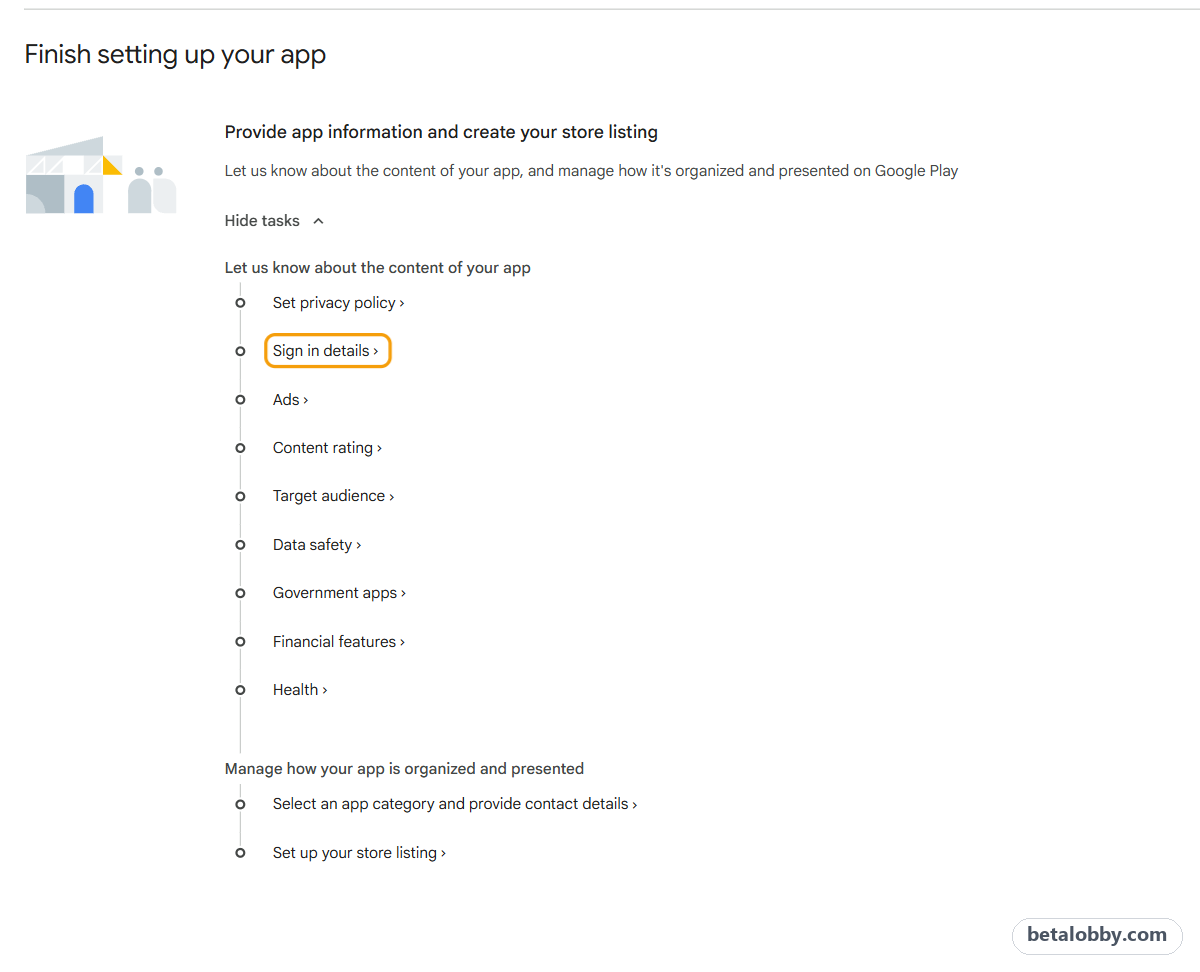
Not filled in yet: the quickest way in is the Dashboard. After you create an app, the Dashboard's "Finish setting up your app" section has a step called "Provide app information and create your store listing". Click View tasks to expand it, and you'll see Sign in details.
Already filled in: once your app setup is complete, the task may no longer show on the Dashboard. Then you go through the left menu: Monitor and improve → Policy and programs → App content.
The new sidebar only shows icons, and "Policy and programs" is tucked under "Monitor and improve", so it's easy to miss unless you expand it.
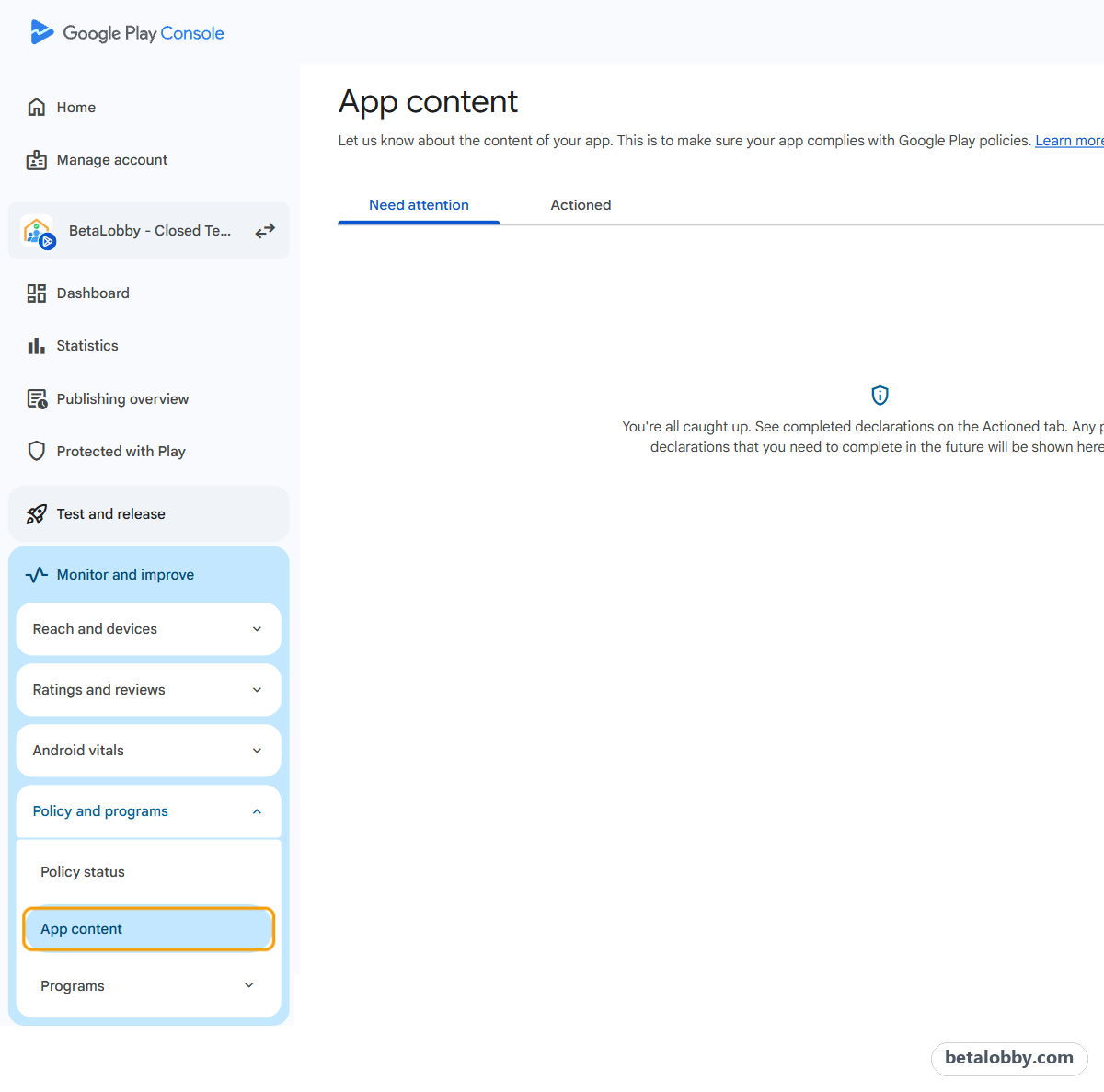
2In App content, the way in depends on whether you've filled it in
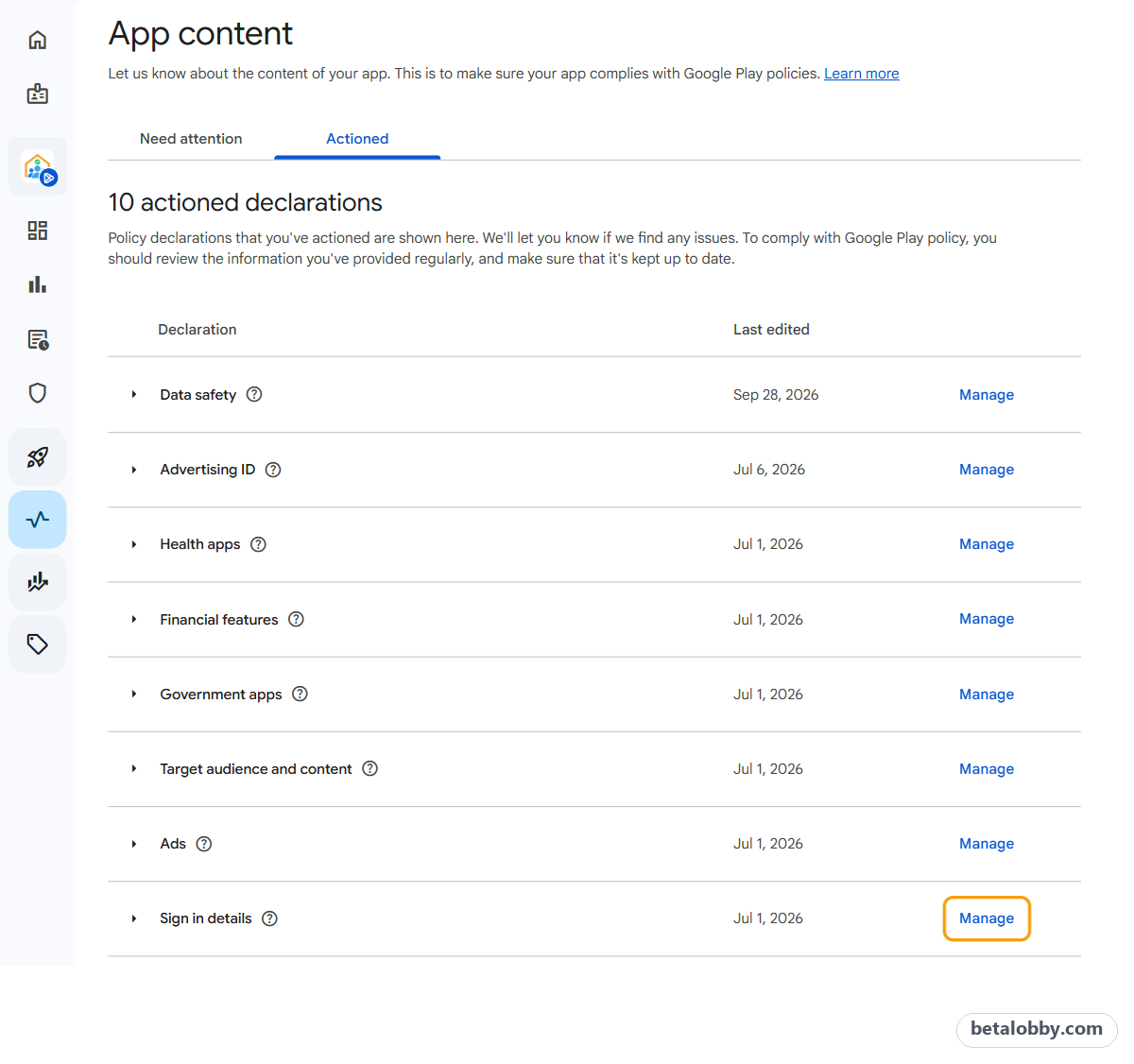
The App content page has two tabs:
- Need attention: declarations you haven't filled in yet. Find Sign in details and click Start declaration
- Actioned: declarations you've already filled in. Find Sign in details and click Manage on the right
3Step one: is any part of your app restricted?
The first question in the declaration is "Is any part of your app restricted?"
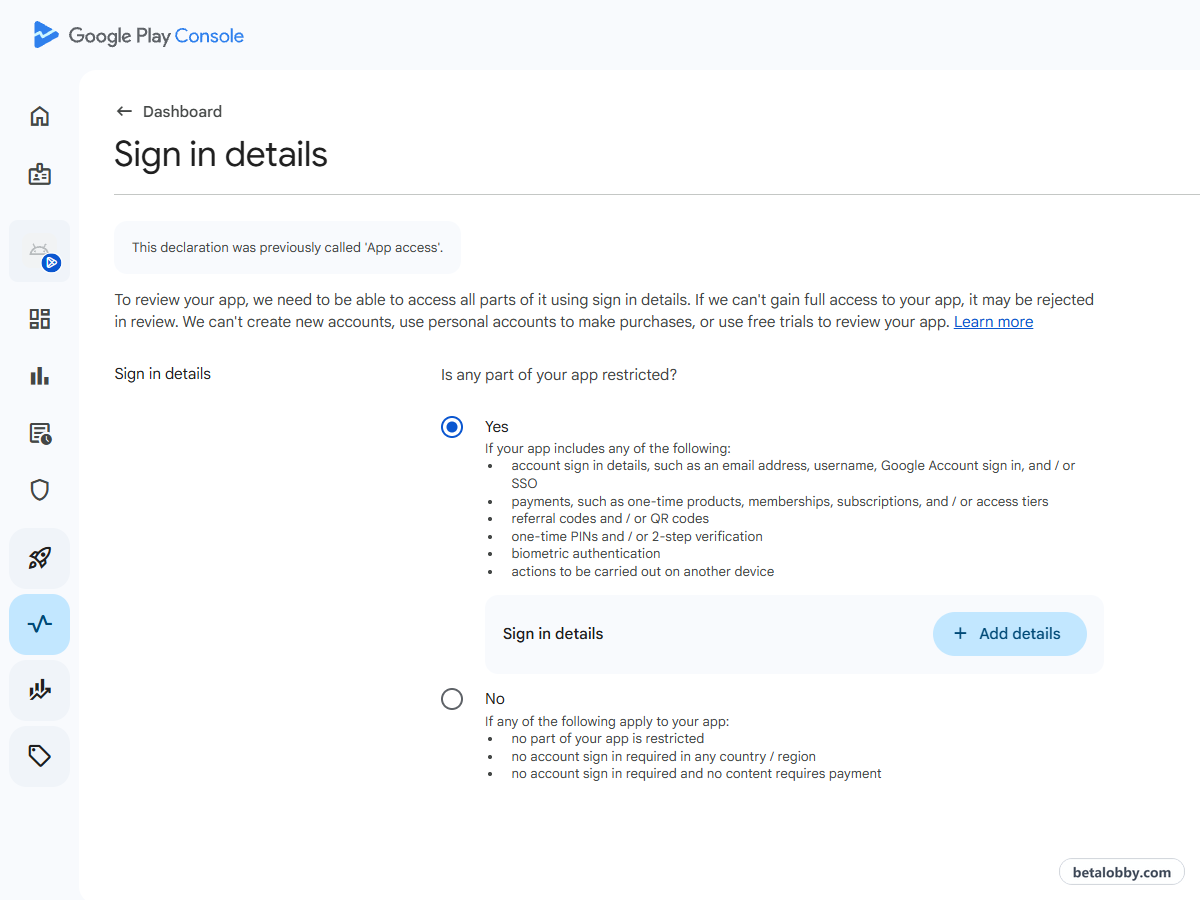
Choose Yes if any of these apply:
- account sign in details, such as an email address, username, Google Account sign in, and / or SSO
- payments, such as one-time products, memberships, subscriptions, and / or access tiers
- referral codes and / or QR codes
- one-time PINs and / or 2-step verification
- biometric authentication
- actions to be carried out on another device
Note that the first item explicitly says Google Account sign in. So even if your app only uses Google Sign-In and has no username and password system of its own, you should choose "Yes".
Choose No only if none of the 6 apply: no sign-in, no payment, and every part of the app is usable as soon as it opens.
After choosing "Yes", click Add details.
4How to fill in each field
When you open "Add details", there's a note at the top of the form. Two parts of it matter most:
You must make sure that this information is kept up to date. We will use the information you provide to review your app every time you submit an update. Information must be provided in English.
In other words, everything here must be in English, and reviewers will sign in with it again every time you submit an update.
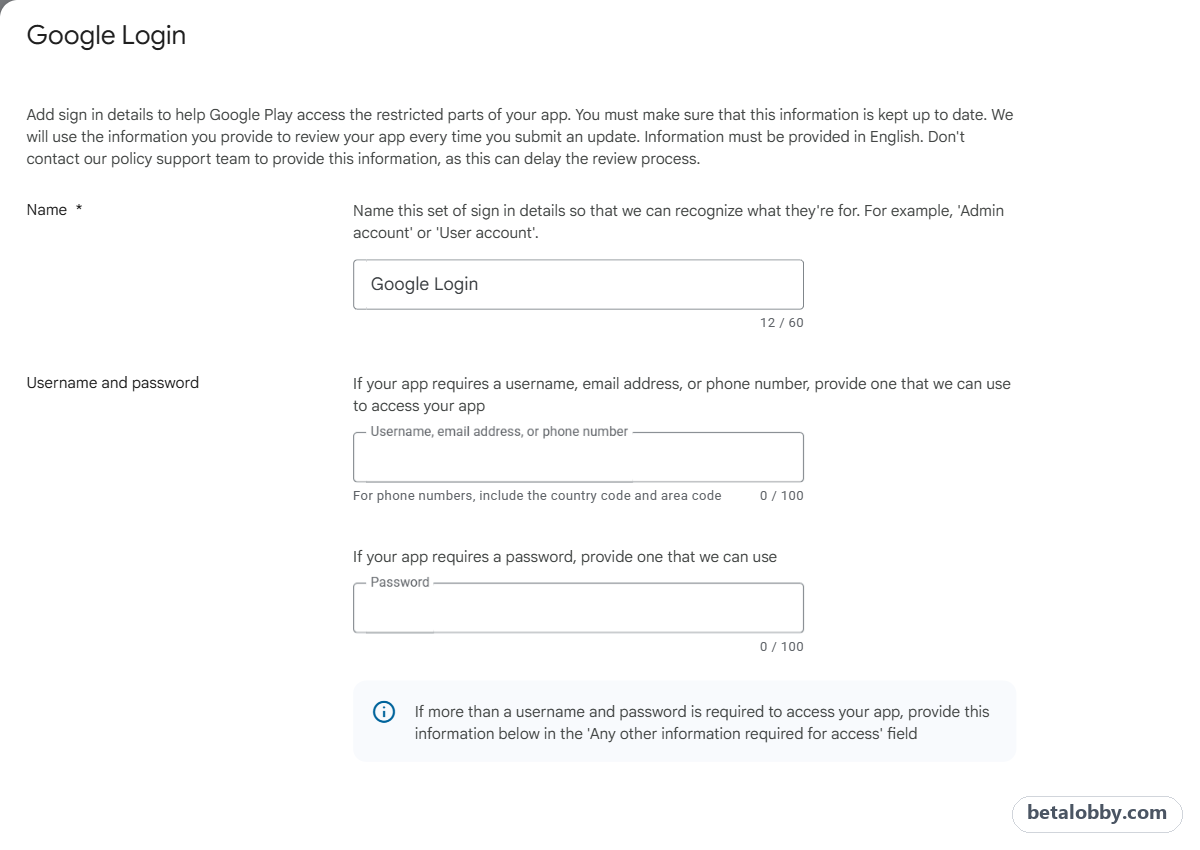
- Name: a name for this set of sign in details, such as
Google LoginorTest account - Username and password: if your app uses a username and password, enter a set that works. If it only uses Google Sign-In, leave both empty
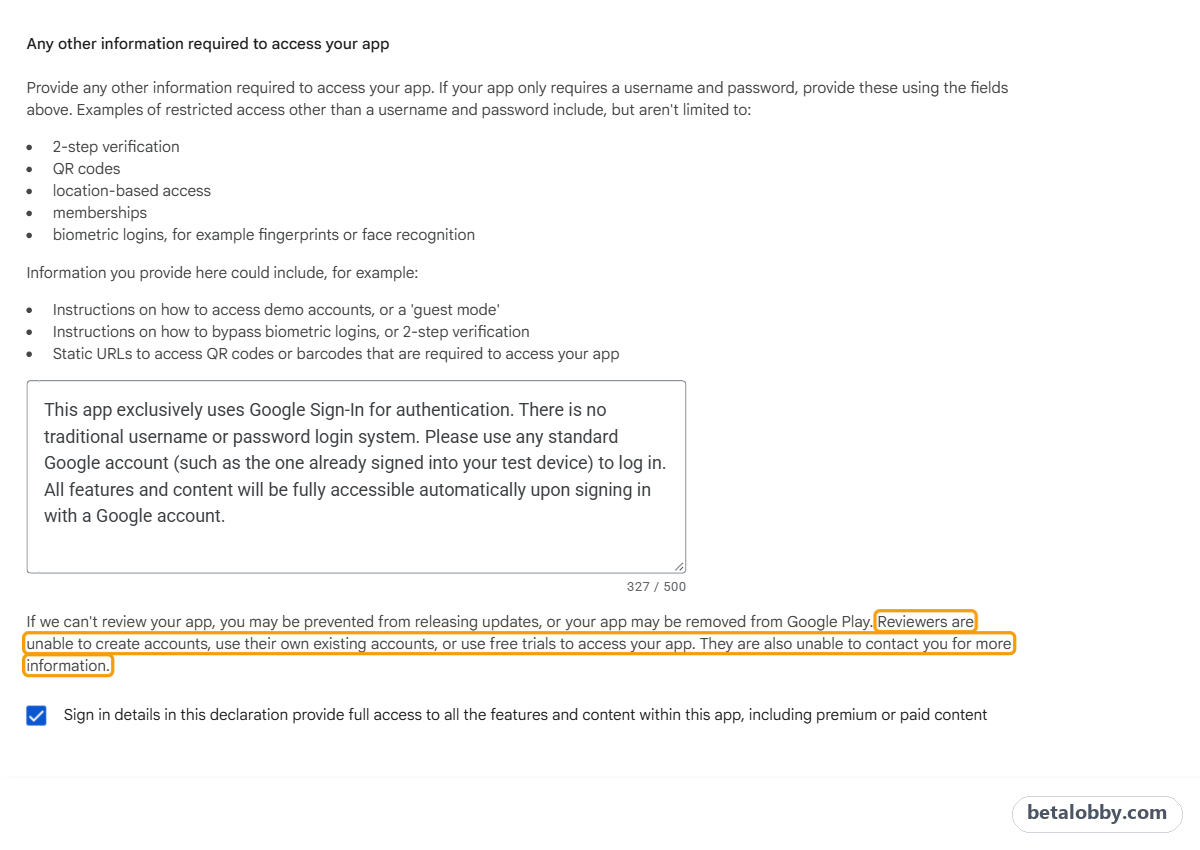
- Any other information required to access your app: everything beyond a username and password goes here, such as how to get past 2-step verification, how to reach a demo account or guest mode, or a static URL for a QR code
- The final checkbox: "Sign in details in this declaration provide full access to all the features and content within this app, including premium or paid content"
Right above the checkbox is a sentence many people skim past:
Reviewers are unable to create accounts, use their own existing accounts, or use free trials to access your app. They are also unable to contact you for more information.
Reviewers won't sign up, and they won't email you to ask. Anything you don't spell out here, they won't see.
You can add more than one set of sign in details. After you save, it appears in a list under "Add details", and clicking "Add details" again adds the next set. If admins and regular users see different features, or your app supports both a username and password and Google Sign-In, add one set for each and give each a clear name. Each row in the list has a pencil icon on the right to edit it and a trash icon to delete it.
5Google Sign-In only: what BetaLobby wrote
BetaLobby only uses Google Sign-In and has no username and password of its own. Here's what we filled in:
- Name:
Google Login - Username and password: left empty
- Any other information required to access your app:
This app exclusively uses Google Sign-In for authentication. There is no traditional username or password login system. Please use any standard Google account (such as the one already signed into your test device) to log in. All features and content will be fully accessible automatically upon signing in with a Google account.
We've filled it in this way since our first submission and have never had a problem with this declaration. That said, this is our own experience, not a guarantee from Google. If your app needs extra steps after sign-in before the main features are usable, such as joining a team or paying first, it's better to prepare a separate test account that's already set up.
Below the list of sign in details there's also a toggle: "Get feedback on your app's experience by allowing Google to use these sign-in details for testing on Google and trusted partner devices". Turning it on lets Google use the same sign in details for additional testing. We have it on.
6Username and password sign-in: give reviewers an account that works
If your app has its own account system, put an account reviewers can sign in with directly under "Username and password". A few tips:
- Use a dedicated test account: not your own main account, and never a real user's account
- Spell out 2-step verification: if signing in sends a verification code, either turn it off for the test account or explain in "Any other information" how to get past it
- Unlock paid content: the final checkbox says "including premium or paid content", so memberships, subscriptions and similar features must work on the test account right away
- Keep the account valid: every update you submit is reviewed again. If the password changes, the account expires or it gets deleted, come back and update the declaration
Checklist before you submit
- If your app needs a sign-in (including Google Sign-In only), you chose "Yes"
- "Any other information" explains in English how to get into the app
- If you use a username and password, the test account signs in right now and paid features work
- After changing the password or sign-in method, you updated it under "Actioned → Sign in details → Manage"
Final thoughts
This declaration takes a few minutes, yet it decides whether reviewers get to see what you built. A few minutes getting it right beats digging for the cause after a review gets stuck.